1. Getting Started
Installation
How to install DataScrub:
- Download the DataScrub64-packed.xll file
- Double-click the file — Excel will open and load the add-in
- Look for the DATA SCRUB tab in the Excel ribbon
The Ribbon
Once installed, you'll see a DATA SCRUB tab in your Excel ribbon. All 55+ tools are organized into groups:
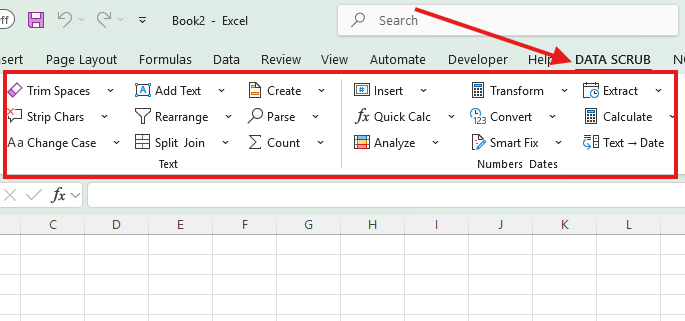
| Ribbon Group | What It Does | Key Tools |
|---|---|---|
| Undo | Reverse any DataScrub operation | Undo |
| Scan | Diagnose data quality issues | Health Scan |
| Text | Clean and transform text values | Trim Spaces, Strip Chars, Change Case, Add Text, Split, Join, Rearrange, Parse, Create, Count |
| Numbers | Fix and format numeric data | Insert, Quick Calc, Analyze, Transform, Convert, Calculate, Smart Fix |
| Dates | Parse and standardize dates | Extract, Text → Date |
| Cleanup | Remove unwanted data | Remove Chars, Dedup, Clean HTML, Values, Remove Blanks, Unmerge, Fill, Find, Replace+ |
| Contacts | Format contact information | Smart Fill, Standardize, Validate Emails, Format Phones, Split Names, Split Address, Normalize Country, Clean URLs |
| Import | Bring in external data | Import (CSV, PDF, Word) |
Basic Workflow
Every DataScrub tool follows the same simple pattern:
The 3-step workflow:
- Select the cells or columns you want to clean
- Click the tool you want from the DATA SCRUB ribbon
- Done — your data is cleaned in place. Use Undo if you need to revert.
2. Data Health Scan
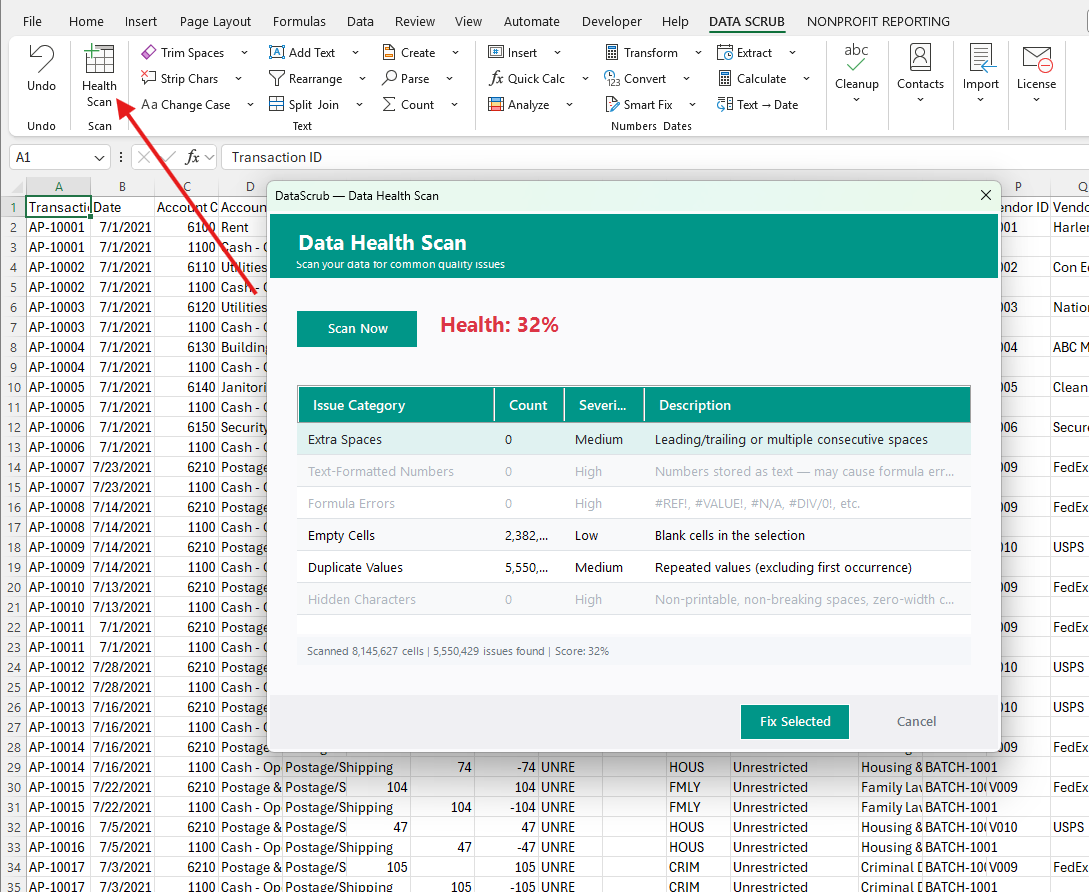
The Health Scan is the best place to start with any new dataset. It analyzes your entire selection and reports every quality issue it finds — extra spaces, text-formatted numbers, formula errors, blanks, duplicates, and hidden characters — all in one pass.
How to Run a Health Scan
Steps:
- Select the data range you want to scan (or press Ctrl+A to select all)
- Click Health Scan on the DATA SCRUB ribbon tab
- The scan runs and displays a results dialog with your data's health score
Understanding the Results
The Health Scan reports a Health Score (0–100%) based on how many issues it finds relative to your total cell count. Each issue is categorized with a severity level:
| Issue Category | Severity | What It Means |
|---|---|---|
| Extra Spaces | Medium | Leading, trailing, or multiple consecutive spaces in text. These cause lookup failures and mismatched joins. Click to fix with Trim Spaces. |
| Text-Formatted Numbers | High | Numbers stored as text (left-aligned, green triangle). SUM, VLOOKUP, and other formulas will silently skip these cells. Click to fix with Values or Smart Fix. |
| Formula Errors | High | #REF!, #VALUE!, #N/A, #DIV/0!, and other error values. Review and fix the source formulas, or use Smart Fix to replace errors with blanks or zeros. |
| Empty Cells | Low | Blank cells in your selection. Use Remove Blanks to delete blank rows, or Fill to fill gaps with the value above. |
| Duplicate Values | Medium | Repeated values (excluding the first occurrence). Use Dedup to highlight or remove duplicates. |
| Hidden Characters | High | Non-printable characters, non-breaking spaces, zero-width characters. Invisible but break lookups and matching. Click to fix with Strip Chars or Clean HTML. |
Fixing Issues
After reviewing the scan results, you have two options:
- Fix Selected — Check the categories you want to fix and click "Fix Selected". DataScrub will automatically apply the appropriate cleaning tool for each issue type.
- Fix manually — Close the dialog and use individual tools from the ribbon to address specific issues with more control.
3. Text Cleaning
The Text group is the largest set of tools in DataScrub. These tools clean, transform, split, and restructure text data without formulas.
Trim Spaces
Removes leading spaces, trailing spaces, and reduces multiple consecutive spaces to a single space. This is the #1 most common data quality issue — invisible spaces that break VLOOKUP, MATCH, and pivot table groupings.
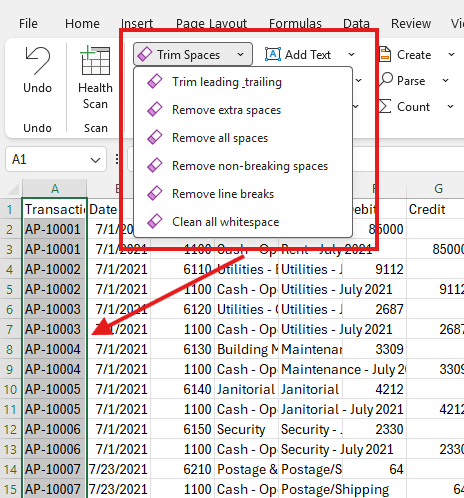
Click the Trim Spaces dropdown arrow to choose exactly what type of whitespace to clean:
| Option | What It Does | When to Use |
|---|---|---|
| Trim leading_trailing | Removes spaces from the start and end of each cell | Most common — fixes VLOOKUP mismatches |
| Remove extra spaces | Reduces multiple spaces to one (e.g., "John Smith" → "John Smith") | Names and addresses with inconsistent spacing |
| Remove all spaces | Strips every space character | ID numbers, codes, phone numbers where no spaces are wanted |
| Remove non-breaking spaces | Removes characters (char 160) that look like spaces but aren't | Data pasted from websites or HTML emails |
| Remove line breaks | Strips carriage returns and newlines within cells | Multi-line cells that should be single-line |
| Clean all whitespace | Does everything above in one pass | When you just want it all gone — the "nuclear option" |
How to use:
- Select the cells or columns with extra spaces
- Click Trim Spaces on the ribbon (or click the dropdown arrow for specific options)
- Spaces are removed instantly — check the status bar for a count of cells cleaned
Strip Chars
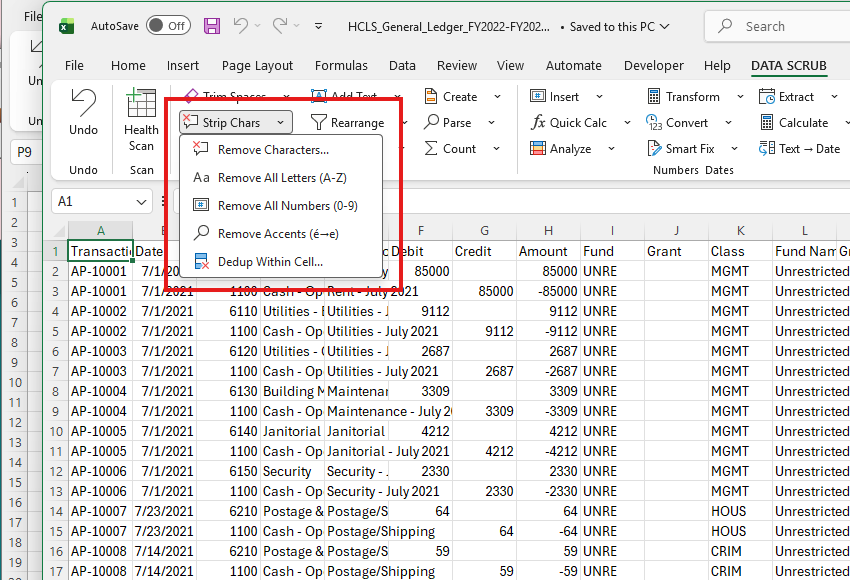
Removes specific character types from your selection. Click the Strip Chars dropdown to choose what to remove:
| Option | What It Does | Example |
|---|---|---|
| Remove Characters... | Opens the full Remove Characters dialog (see below) | Remove first N chars, keep only N chars, strip non-printable, or specify custom characters |
| Remove All Letters (A-Z) | Strips all alphabetic characters, leaving only numbers and symbols | "Order#12345" → "#12345" |
| Remove All Numbers (0-9) | Strips all digits, leaving only letters and symbols | "John123Smith" → "JohnSmith" |
| Remove Accents (e→e) | Replaces accented characters with their plain equivalents | "café" → "cafe", "résumé" → "resume" |
| Dedup Within Cell... | Removes duplicate words or values within a single cell | "red, blue, red, green" → "red, blue, green" |
The Remove Characters Dialog
Clicking Remove Characters... opens a detailed dialog with 8 removal modes:
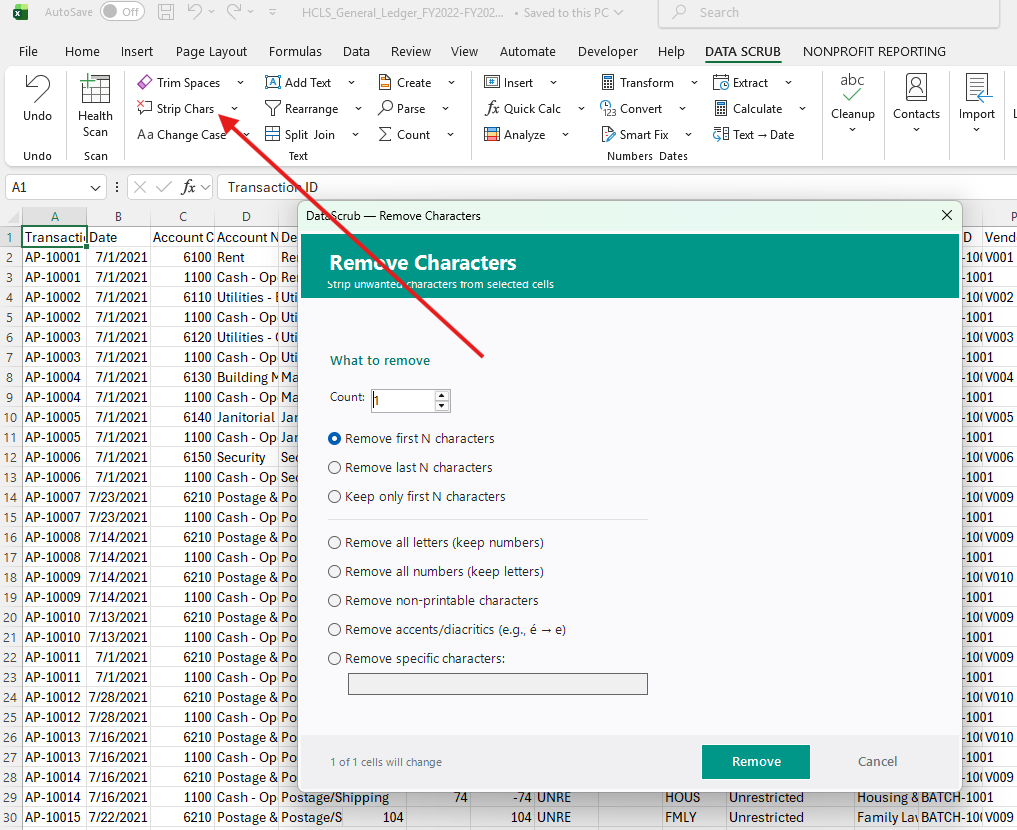
| Mode | What It Does | Use Case |
|---|---|---|
| Remove first N characters | Strips the first N characters from each cell | Remove a fixed-length prefix like "INV-" (set N=4) |
| Remove last N characters | Strips the last N characters from each cell | Remove a file extension like ".csv" (set N=4) |
| Keep only first N characters | Truncates each cell to N characters | Standardize codes to a fixed length |
| Remove all letters (keep numbers) | Strips A-Z, keeps digits and symbols | Extract numeric IDs from mixed text |
| Remove all numbers (keep letters) | Strips 0-9, keeps letters and symbols | Extract names from alphanumeric codes |
| Remove non-printable characters | Strips control chars, zero-width chars, BOM markers | Clean data pasted from web or imported files |
| Remove accents/diacritics | Replaces accented letters with plain equivalents | Normalize international names for matching |
| Remove specific characters | Type the exact characters to strip in the text box | Remove specific symbols like @, #, $, etc. |
Change Case
Converts text between case formats. Click the Change Case dropdown to pick a format:
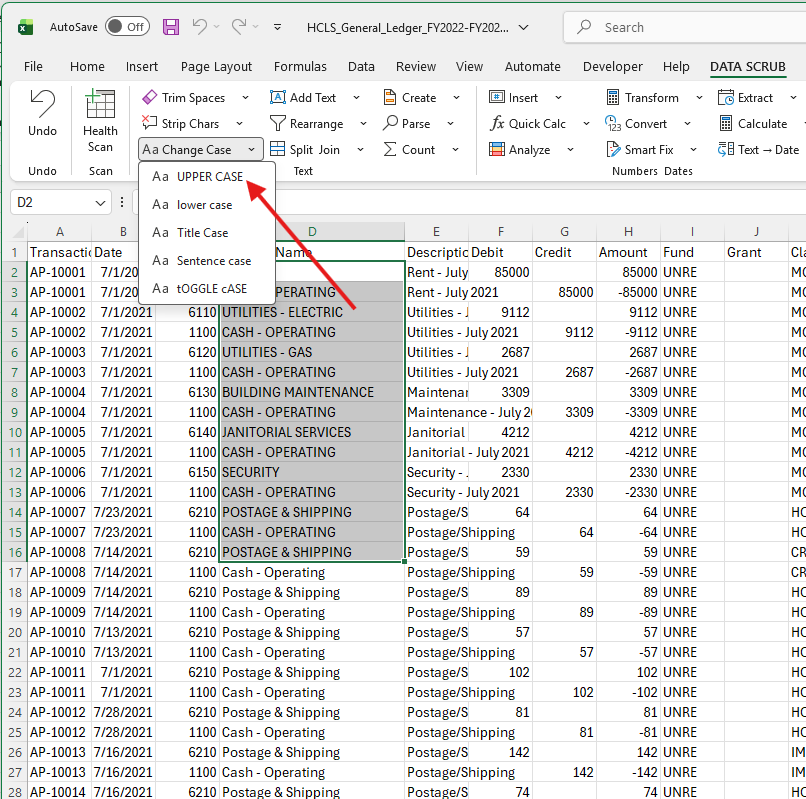
| Option | Result | When to Use |
|---|---|---|
| UPPER CASE | "cash - operating" → "CASH - OPERATING" | Standardizing codes, headers, or labels |
| lower case | "JOHN SMITH" → "john smith" | Preparing data for case-sensitive matching |
| Title Case | "cash - operating" → "Cash - Operating" | Names, addresses, descriptions — the most common choice |
| Sentence case | "HELLO WORLD. GOODBYE." → "Hello world. Goodbye." | Notes, comments, free-text fields |
| tOGGLE cASE | "Hello" → "hELLO" | Rarely used — inverts every character's case |
Add Text
Inserts text at a specific position in every cell in your selection — beginning, end, or at a character position. Useful for adding prefixes, suffixes, or inserting text mid-string.
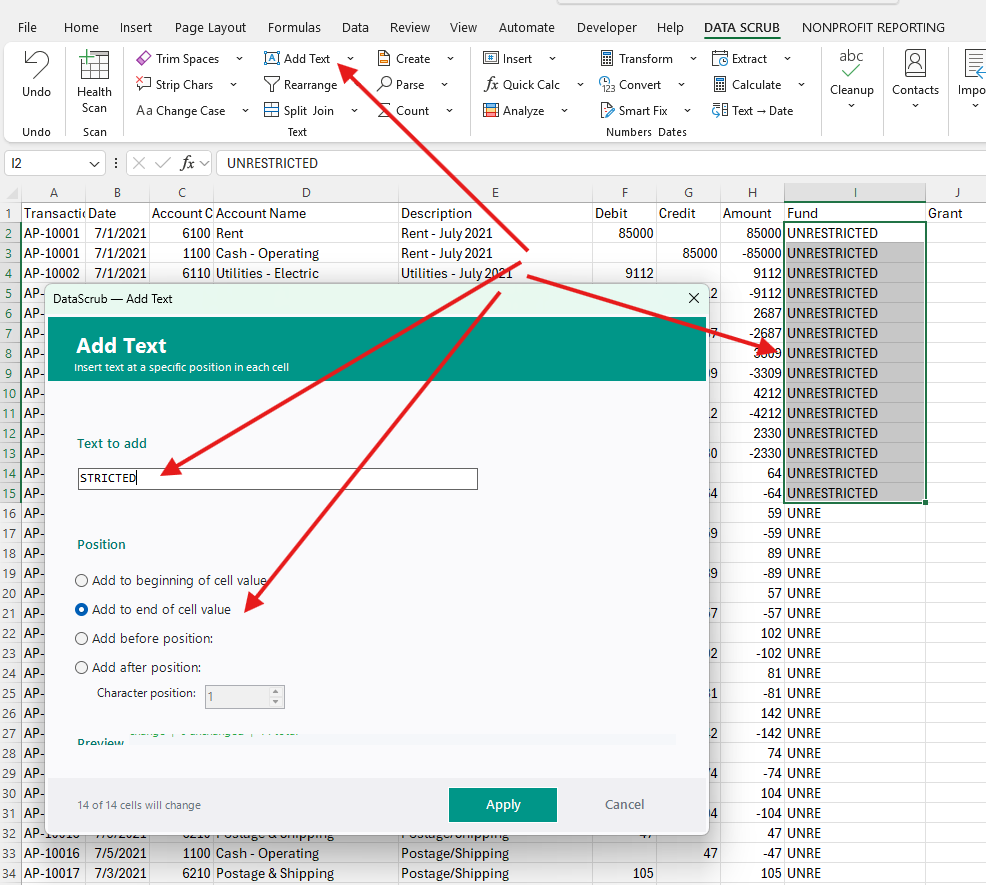
| Position Option | What It Does | Example |
|---|---|---|
| Add to beginning of cell value | Prepends text before existing content | "10001" → "INV-10001" |
| Add to end of cell value | Appends text after existing content | "UNRE" → "UNRESTRICTED" |
| Add before position | Inserts text before the Nth character | Insert "-" at position 4: "AP10001" → "AP-10001" |
| Add after position | Inserts text after the Nth character | Insert " " at position 2: "NY10001" → "NY 10001" |
Split & Join
Split breaks cell contents into multiple columns or rows. Join does the opposite — combines multiple columns into one. Both are accessible from the Split Join button on the ribbon.
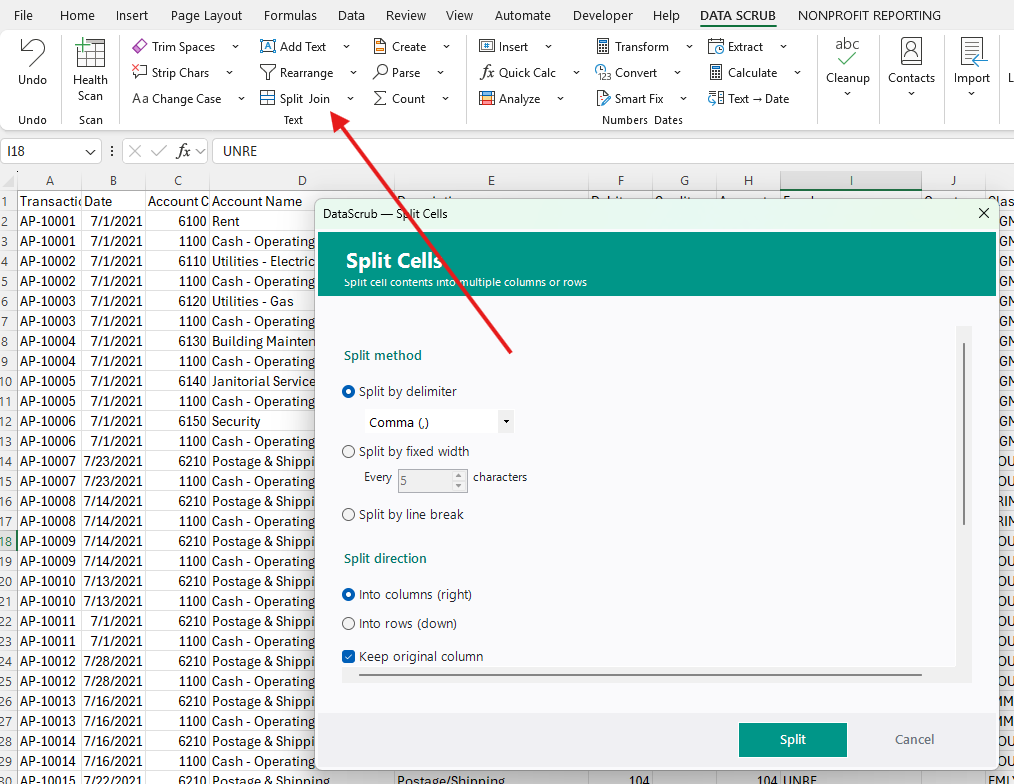
Split Methods
| Method | What It Does | Example |
|---|---|---|
| Split by delimiter | Splits on a character — comma, space, dash, pipe, or custom | "Smith, John" splits into "Smith" | "John" |
| Split by fixed width | Splits every N characters | "ABCDEF" with width 2 → "AB" | "CD" | "EF" |
| Split by line break | Splits multi-line cells into separate cells | A cell with 3 lines → 3 columns or 3 rows |
Split Direction
- Into columns (right) — the split results fill new columns to the right of the original
- Into rows (down) — each split piece gets its own row (duplicates the other columns)
Join (Combine Columns)
Join does the opposite of Split — select multiple columns and combine them into one, with a delimiter of your choice. For example, joining First Name + Last Name with a space separator, or combining Address + City + State + Zip with commas.
Rearrange
Reorders parts of text within each cell. Common use: converting "Smith, John" to "John Smith" without splitting into separate columns.
Parse
Extracts specific data from text cells using pattern recognition. Click the Parse dropdown to choose an extraction method:
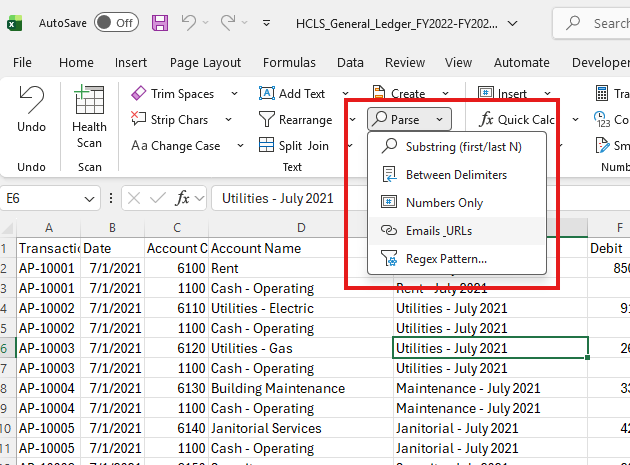
| Option | What It Extracts | Example |
|---|---|---|
| Substring (first/last N) | The first or last N characters from each cell | First 3 of "AP-10001" → "AP-" |
| Between Delimiters | Text between two characters you specify | Between "(" and ")" in "John (CEO)" → "CEO" |
| Numbers Only | Extracts just the numeric parts from mixed text | "Invoice #12345-A" → "12345" |
| Emails_URLs | Finds and extracts email addresses or URLs from free text | "Contact us at info@org.com for help" → "info@org.com" |
| Regex Pattern... | Extract using a custom regular expression — the most powerful option | Pattern \d{3}-\d{4} extracts phone numbers like "555-1234" |
Create
Generates new data based on patterns — sequential IDs, random values, repeated sequences, or template-based text.
Count
Counts characters, words, or specific patterns in each cell and writes the count to an adjacent column. Useful for data validation (e.g., ensuring phone numbers have exactly 10 digits).
4. Number Tools
The Numbers and Dates groups fix, format, and transform numeric and date data. The most common issue: numbers stored as text that silently break SUM, AVERAGE, and other calculations.
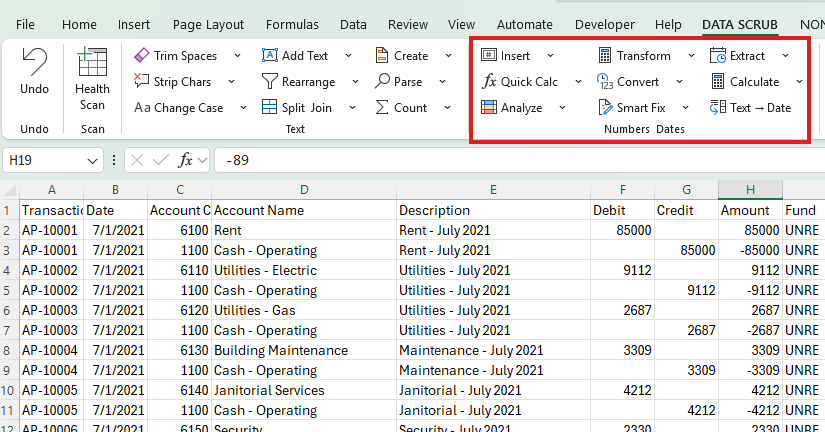
Insert
Generates new data columns — sequences, IDs, running totals, and calculated values. Click the Insert dropdown:
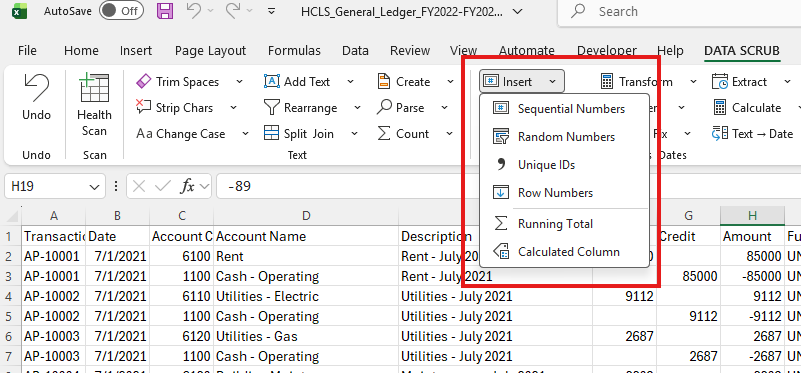
| Option | What It Generates | Use Case |
|---|---|---|
| Sequential Numbers | 1, 2, 3, 4... (or custom start/step) | Adding row numbers or sequence IDs to imported data |
| Random Numbers | Random values within a range you specify | Test data generation, sampling |
| Unique IDs | Unique identifiers for each row | Creating primary keys for data that lacks them |
| Row Numbers | Simple row numbering (1, 2, 3...) | Quick numbering after sorting or filtering |
| Running Total | Cumulative sum down a numeric column | Running balance for financial data |
| Calculated Column | New column based on a formula using existing columns | Compute Debit - Credit, concatenate fields, etc. |
Quick Calc
Performs quick arithmetic on every cell in your selection — no formulas needed. Enter a value, pick an operation, and DataScrub applies it across all selected cells in place.
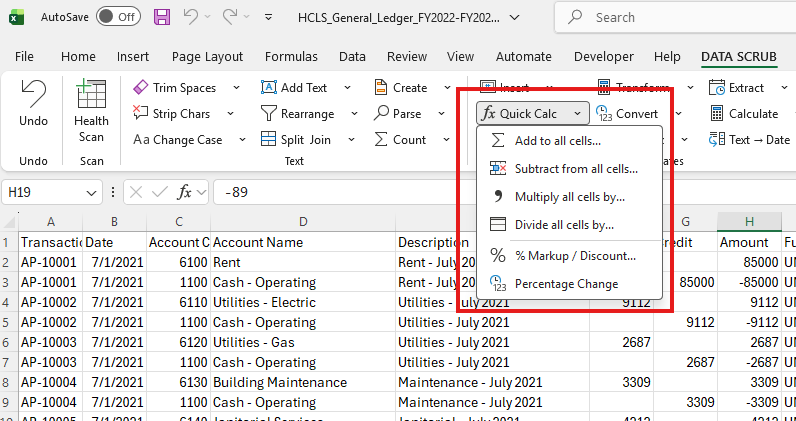
| Option | What It Does | Example |
|---|---|---|
| Add to all cells | Adds a fixed number to every cell | Add 100 to all prices for a shipping surcharge |
| Subtract from all cells | Subtracts a fixed number from every cell | Subtract 5 to remove a flat fee from each amount |
| Multiply all cells by | Multiplies every cell by a factor | Multiply by 1.1 to apply a 10% increase |
| Divide all cells by | Divides every cell by a value | Divide by 100 to convert cents to dollars |
| % Markup/Discount | Applies a percentage increase or decrease | +15% markup on cost prices, or -20% discount |
| Percentage Change | Calculates the % change between each cell and a base value | Show how each month's sales compares to a baseline |
Convert
Converts between units — temperature (F/C), distance (miles/km), weight (lbs/kg), currency formatting, and more.
Calculate
Evaluates text expressions as math. If a cell contains "2+3*4", Calculate will replace it with "14". Useful for imported data that contains formulas as plain text.
Smart Fix
Automatically detects and fixes the most common number issues:
- Converts text-formatted numbers to real numbers
- Removes currency symbols and thousand separators
- Fixes negative number formats (parentheses to minus sign)
- Replaces formula errors (#N/A, #REF!) with blanks or zeros
Transform
Applies mathematical transformations: absolute value, round up/down, floor/ceiling, logarithm, square root, and power functions.
Analyze
The Analyze dropdown provides tools that go beyond simple statistics — it includes scaling, ranking, and number-to-text conversion:
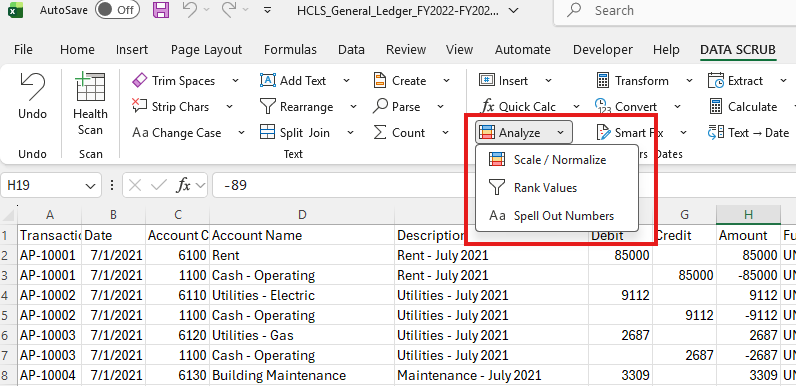
| Option | What It Does | Use Case |
|---|---|---|
| Scale / Normalize | Rescales numbers to a standard range (e.g., 0–1 or 0–100) using min-max normalization or z-score standardization | Comparing metrics on different scales — e.g., revenue (thousands) vs. headcount (tens) |
| Rank Values | Assigns a rank to each cell based on its value (highest = 1, or lowest = 1) | Ranking sales reps by performance, students by score, or transactions by amount |
| Spell Out Numbers | Converts numeric values to written words | "85000" → "Eighty-Five Thousand" — required on checks, invoices, and legal documents |
5. Date & Time Tools
The Dates group handles the most frustrating Excel problem: dates stored as text that won't sort, filter, or calculate correctly.
Text → Date
Converts text strings to proper Excel date values. Handles dozens of formats automatically:
- "01/15/2024", "15-Jan-2024", "January 15, 2024"
- "2024-01-15" (ISO format)
- "15.01.2024" (European format)
- "20240115" (compact format)
DataScrub auto-detects the format. If it can't determine whether "01/02/2024" is January 2 or February 1, it will ask you to confirm the format.
Extract
Pulls out date components into separate columns: year, month, day, quarter, week number, day of week, or time components (hour, minute, second). Useful for building pivot table groupings.
6. Data Quality & Deduplication
The Cleanup group removes unwanted data and fixes structural issues in your spreadsheet.
Dedup (Remove Duplicates)
DataScrub's deduplication goes beyond Excel's built-in "Remove Duplicates":
- Highlight duplicates — color-code duplicates without deleting (for review first)
- Remove duplicates — delete duplicate rows, keeping the first or last occurrence
- Multi-column matching — find duplicates based on one or more key columns
- Fuzzy matching — catch near-duplicates like "John Smith" vs "Jon Smith"
Remove Blanks
Deletes entire rows where the selected column(s) are empty. Also can remove blank cells and shift remaining data up.
Fill
Fills empty cells with the value from the cell above. Essential for "merged cell" style data where a category label appears once and the rows below are blank.
Unmerge
Unmerges all merged cells in the selection and fills the resulting blank cells with the merged value. Merged cells are the #1 cause of broken sorting, filtering, and pivot tables.
Values
Converts formulas to their current values (paste-as-values in one click). Also converts text-formatted numbers to real numbers.
Clean HTML
Strips HTML tags, entities (&, , etc.), and embedded formatting from text. Essential when you've pasted data from a website or email.
Find & Replace+
An enhanced find-and-replace with:
- Regex support — use regular expressions for complex pattern matching
- Multi-replace — define multiple find/replace pairs and run them all at once
- Saved presets — save your common replacements for reuse
7. Import (CSV, PDF, Word)
The Import tool brings external data directly into your Excel worksheet from multiple file formats.
CSV Import
Imports CSV and TSV files with automatic delimiter detection. Handles encoding issues (UTF-8, ANSI, etc.) and preserves leading zeros in ID columns.
PDF Import
Extracts tables from PDF files into Excel. Uses intelligent table detection to identify rows, columns, and headers. Works with:
- Bank statements
- Invoices with line items
- Financial reports
- Any PDF with tabular data
Word Import
Extracts tables from Word documents (.docx) directly into Excel cells, preserving the table structure.
How to import a file:
- Click the cell where you want the imported data to start
- Click Import on the DATA SCRUB ribbon
- Select the file type (CSV, PDF, or Word)
- Browse and select your file
- Preview the data and adjust settings if needed
- Click Import — the data lands in your worksheet
8. Batch Clean & Quick Clean
For repetitive cleaning tasks, DataScrub lets you chain multiple tools together and run them in one click.
Batch Clean
Build a multi-step cleaning pipeline:
How to set up a batch clean:
- Click Batch Clean (in the Cleanup group or Quick Clean dropdown)
- Add steps: e.g., Trim Spaces → Change Case to Title → Remove Duplicates
- Preview the results at each step
- Click Run All to execute the entire pipeline
- Save the pipeline as a preset for future use
Quick Clean Presets
Pre-built cleaning recipes for common scenarios:
- Basic cleanup — Trim spaces + remove non-printable characters
- Name cleanup — Trim + Title Case + remove extra spaces
- Number fix — Convert text-to-number + remove currency symbols + trim
- Contact cleanup — Format phones + validate emails + standardize names
9. Tips & Best Practices
Before You Start
- Work on a copy. While DataScrub supports Undo, it's always safest to clean a copy of your data.
- Run Health Scan first. It gives you a roadmap of everything that needs fixing.
- Select carefully. Most tools work only on the selected range. Select too little and you'll miss data; select too much and you might clean cells you didn't intend to.
Common Workflows
| Scenario | Recommended Steps |
|---|---|
| Cleaning a CSV export | Import → Health Scan → Trim Spaces → Smart Fix (numbers) → Dedup |
| Preparing data for VLOOKUP | Trim Spaces → Change Case → Strip hidden characters → Values (remove formulas) |
| Cleaning a mailing list | Trim → Split Names → Title Case → Format Phones → Validate Emails → Dedup |
| Extracting data from PDF | Import PDF → Health Scan → Smart Fix → Text → Date → Trim |
| Fixing pivot table source data | Unmerge → Fill gaps → Trim Spaces → Remove Blanks → Dedup |
Keyboard Shortcuts
DataScrub tools don't have built-in keyboard shortcuts, but you can use Excel's ribbon shortcut system: press Alt, then look for the shortcut letters that appear on the DATA SCRUB tab. This lets you access any tool without the mouse.
Getting Help
If you run into issues or have questions, email jkisarale@gmail.com — we typically respond within 24 hours.